
Appearance
👨💼 Admin Guide: Creating Report Types
As an administrator, you create Report Types that users can use to generate reports. A Report Type includes a name, description, template file, and sample file.
Prerequisites
- Admin role in the system
- Report Template file (Excel, Word, or PDF) - defines report structure and format
- Report Sample file (Excel, Word, or PDF) - example of completed report
💡 Read Key Concepts first to understand templates vs samples
Creating a Report Type
Step 1: Access Report Types Page
- Log in to Auto-Report System
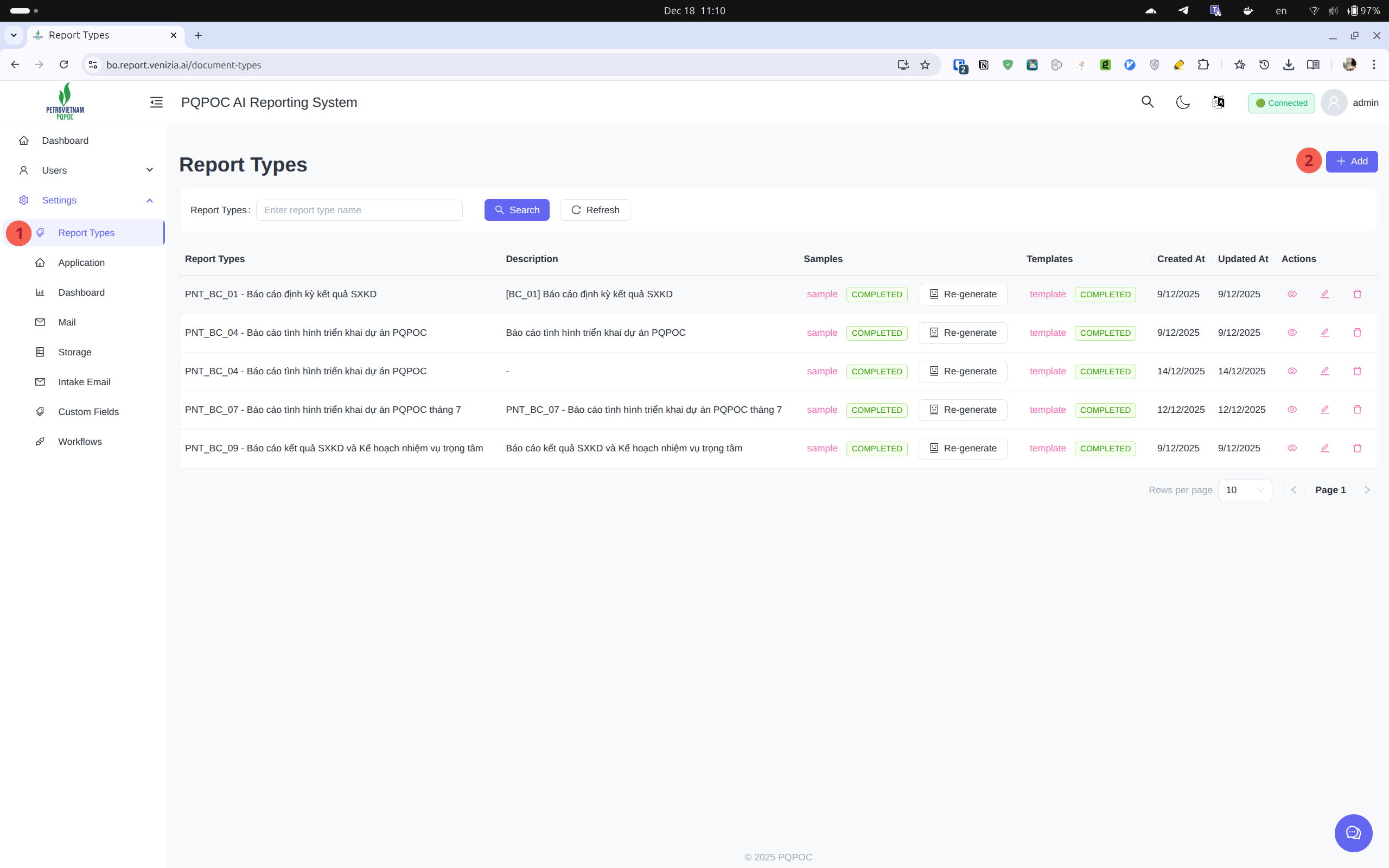
- Navigate to Settings → Report Types
You'll see the list of existing report types:
Step 2: Create New Report Type
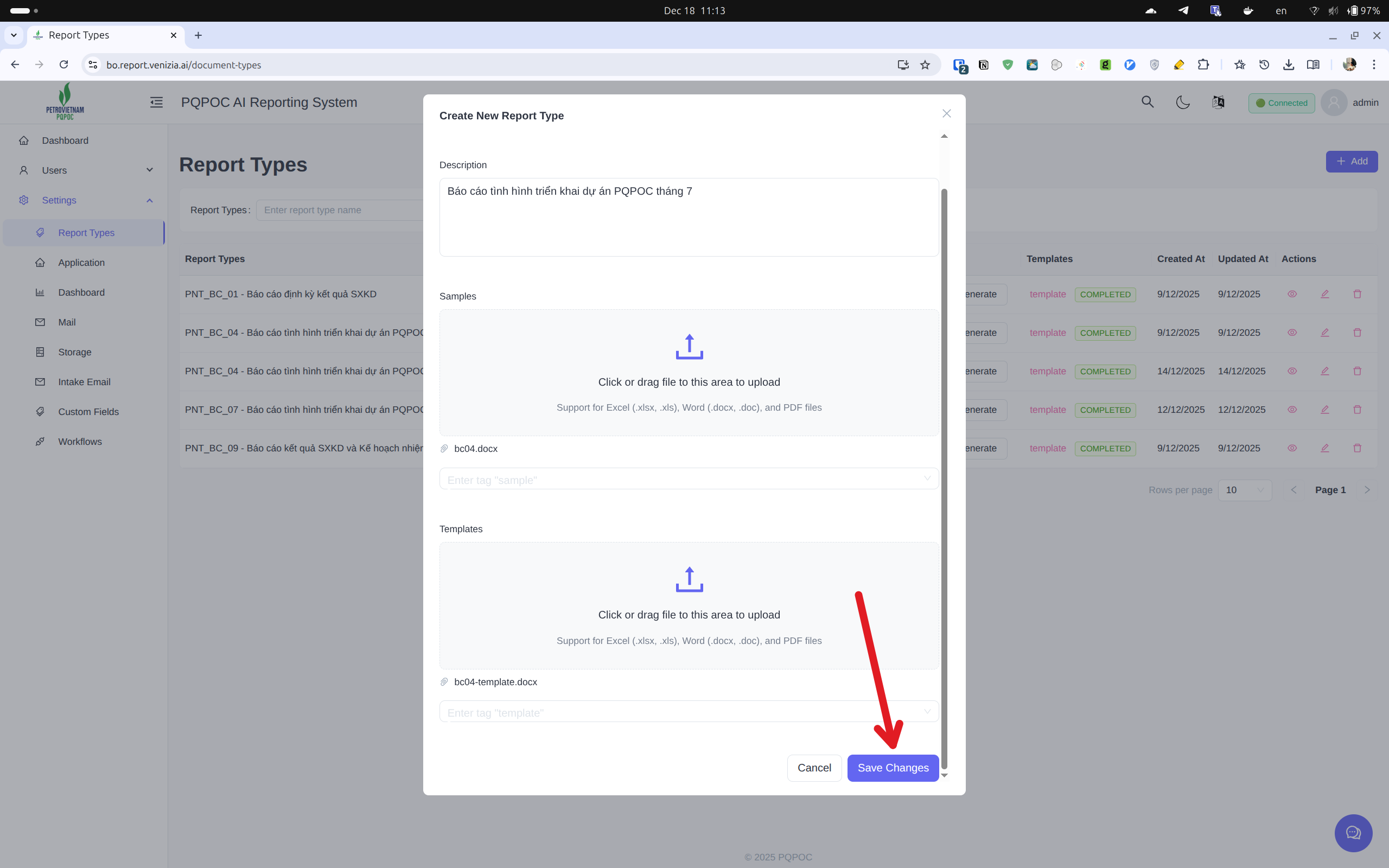
Click the "+ Add" button in the top-right corner.
Step 3: Fill in Details
Report Type Name (required)
- Use a clear, descriptive name
- Examples: "Monthly Financial Summary", "Project Progress Report", "Weekly Sales Analysis"
Description
- Explain what the report is for
- Mention required data
- Example: "Monthly financial summary for department managers. Requires expense data and budget allocations."
Step 4: Upload Template File
The template defines report structure and format.
- Drag and drop your template file into the "report template" upload area, or click to browse
- Supported formats: Excel (
.xlsx,.xls), Word (.docx,.doc), PDF (.pdf) - Template should include: report structure, headers/footers, formatting, placeholders for data
- Verify the filename appears after upload (e.g.,
bc04.docx)
Step 5: Upload Sample File
The sample shows an example of a completed report.
- Drag and drop your sample file into the "report sample" upload area, or click to browse
- Supported formats: Same as template
- Sample should include: completed report from previous period, real example data, filled sections
- Verify the filename appears after upload
Step 6: Save
- Review: name is clear, description is helpful, both files uploaded
- Click "Save changes"
- Wait for processing (Uploading → Processing → Completed)
- Your report type will appear in the list with "COMPLETED" status
Need help? See Key Concepts or User Guide | Back to User Guide Home